
Connecting the Phone
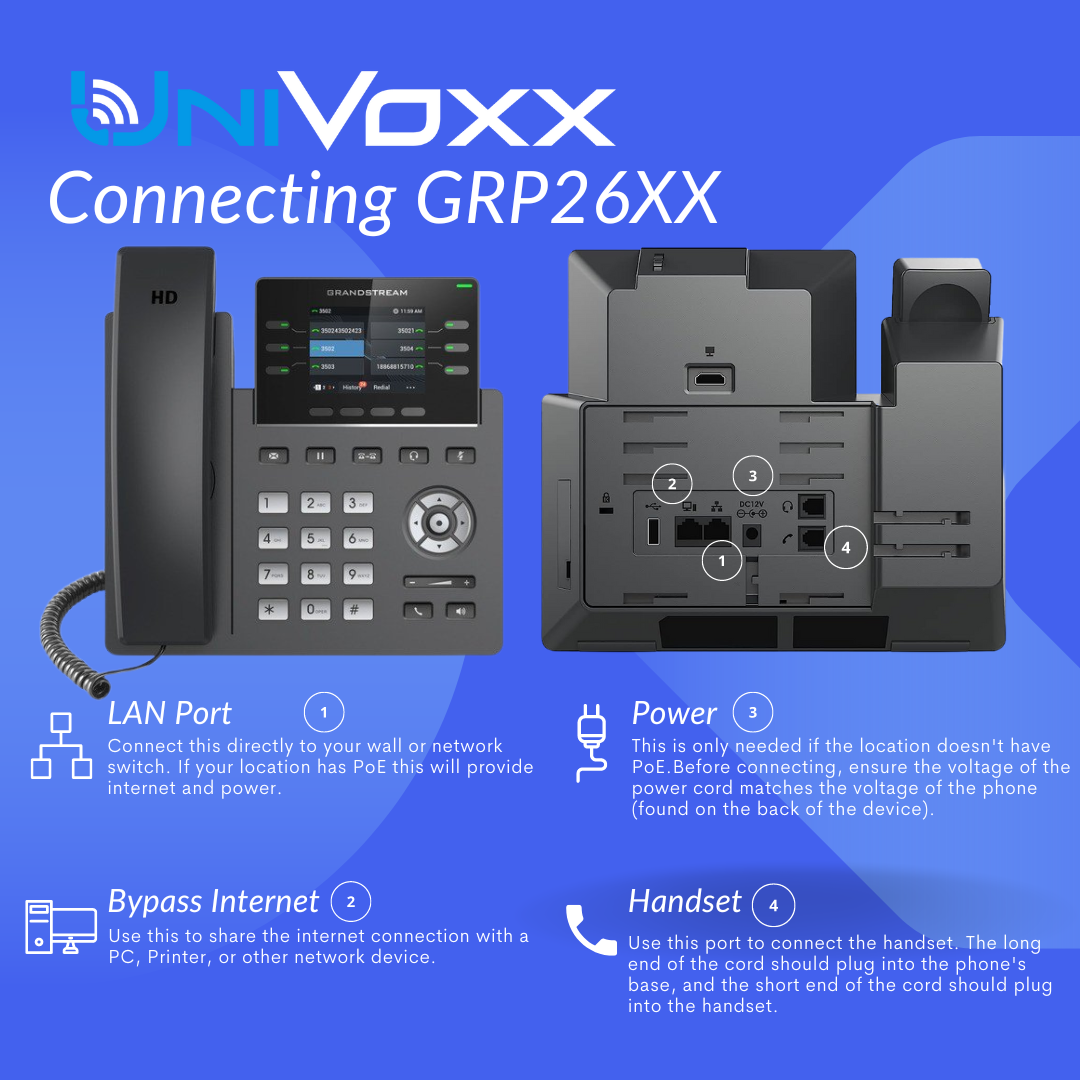
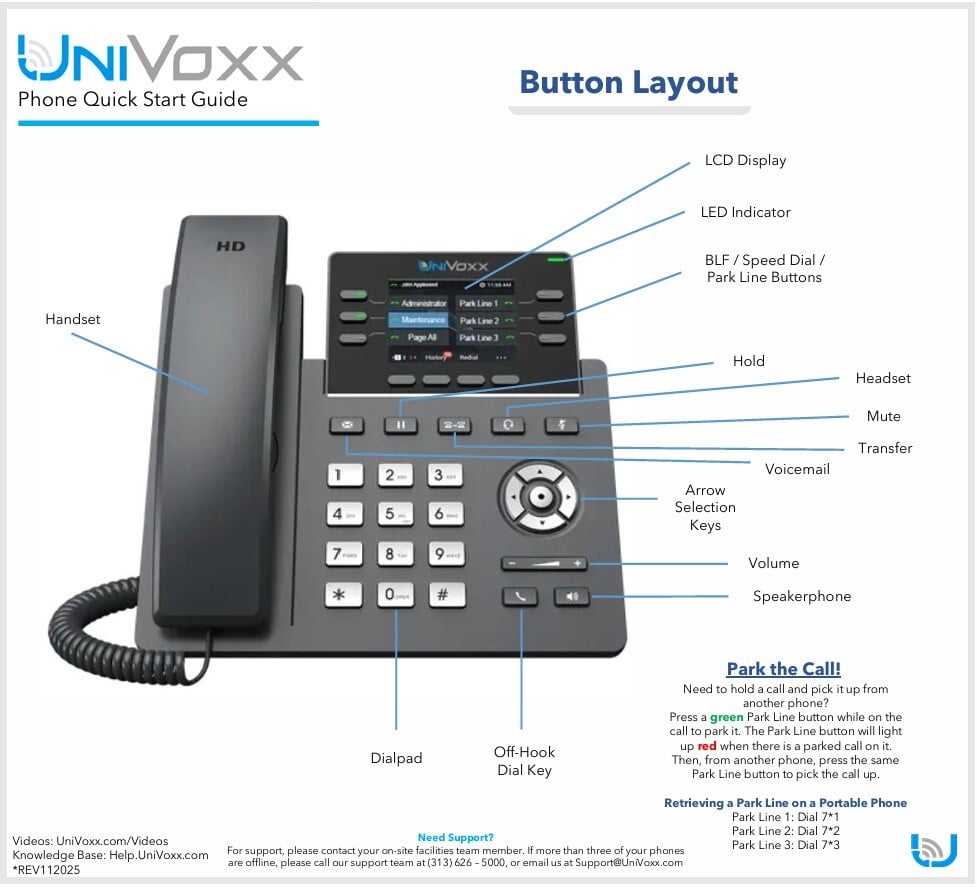
Quick Start Guide and Phone Layout
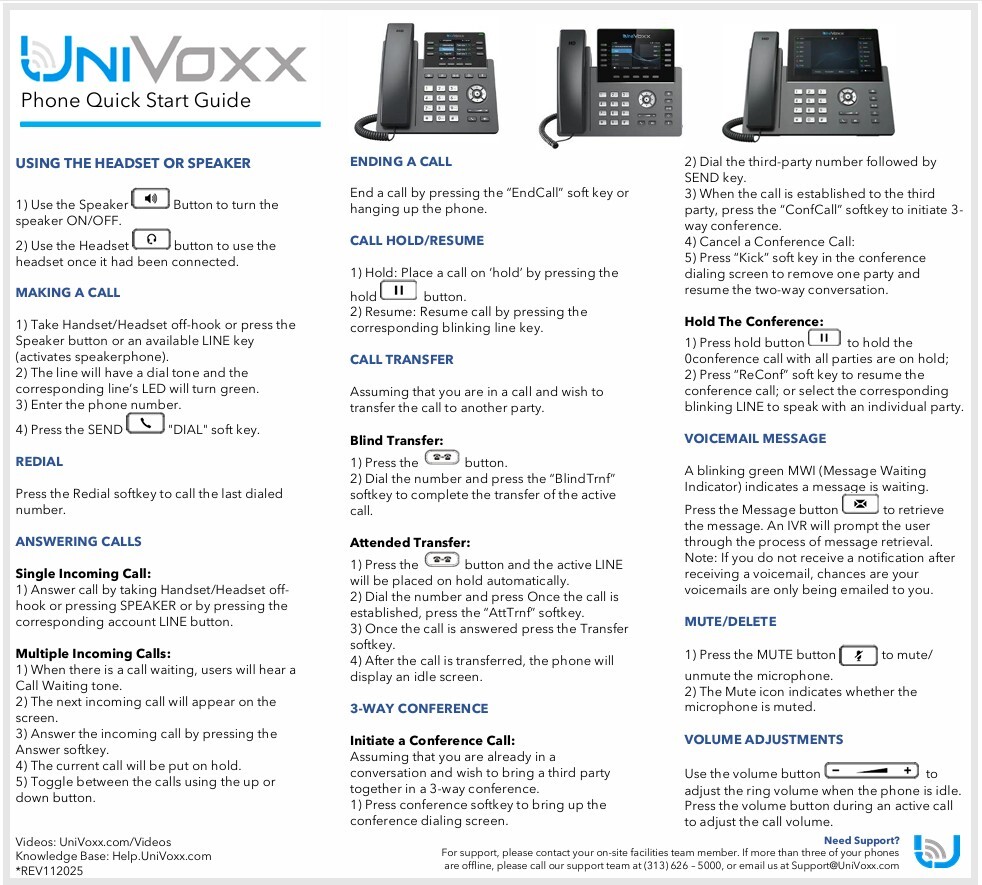
Place a Phone Call
There are several different ways to place a call:
1. Pick up the handset and dial the number.
2. If a speed dial or BLF line key is configured on the phone, press the line key to dial out from the handset or speaker.
3. Dial the phone number or extension directly from the keypad to use the speaker phone.
Answering Phone Calls and Receiving Calls
Incoming Call
When there is an inbound call, answer the call by pressing the Answer button below the screen, picking up the handset or by pressing the Speakerphone button.
If your phone has LINE keys, when the phone rings, the corresponding LINE key will flash in red. Answer the call by taking the handset off the hook or pressing the corresponding flashing LINE key.
Multiple Incoming Calls
When an incoming call occurs during an active call, the phone will produce a Call Waiting tone (stutter tone). You have the option to Answer or Reject the new call as those options will appear on the phone screen. Press the Answer button below the phone screen to answer the new call, which will automatically place the current active call on hold. You can toggle between calls by utilizing the up and down arrow buttons.
If there are LINE keys on the phone, the next available LINE key will flash in red. Answer the incoming call by pressing the corresponding flashing LINE key. The current active call will be put on hold automatically while you answer the incoming call.
Ending a Call
End a call by pressing the “EndCall” soft key or hanging up the handset.
Do Not Disturb (DND)
Do Not Disturb can be enabled/disabled from phone's screen by pressing the 'DND' soft key. This softkey is configured via the UniVoxx portal.
Adjusting the Volume
To adjust the volume, press the key at the right-hand side of the device:
The left button will lower the volume, and right will increase the volume.

Call Transfer
Blind TransferDuring an active call, press the transfer  key on the phone or the Trnsfr softkey on the bottom of the screen, dial the extension or 10-digit phone number you wish to transfer the call to, then press the Blnd transfer at the bottom of the screen and the call should then transfer. Hang up after the call has been transferred.
During an active call, press the transfer key on the phone or the Trnsfr softkey on the bottom of the screen, dial the extension you would like to transfer the call to, then press Attnd Transfer at the bottom of the screen. The original call will be placed on hold while you speak with the person receiving the transfer.Once you have finished speaking with the person receiving the transfer, simply hang up and the call will be transferred automatically.
Create a Conference Call
1. Start an active call with another party.
2. Press the conference button or soft-key to bring up the conference dialing screen.
3. Dial the third party number, followed by the CALL key.
4. When the call is established to the third party, press the “ConfCall” soft-key (or “Conference” button on GRP2614/GRP2616) to initiate the 3-way conference.
Cancel a Conference Call
1. Press the “Kick” soft key in the conference dialing screen to remove one party and resume the two-way conversation.
Hold The Conference
1. Press the hold button to hold the conference call with all parties are on hold;
2. Press the “ReConf” soft key to resume the conference call; or select the corresponding blinking LINE to speak with an individual party.
End The Conference
The conference will be terminated for all three parties if the conference initiator hangs up or presses the “EndCall” soft key.
Voice Mail
A blinking red MWI (Message Waiting Indicator) on the top right corner of the phone indicates a message is waiting. Check the voicemail box to retrieve the message by pressing *97, or by pressing the voicemail button.