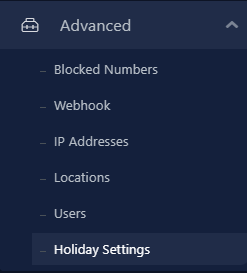
1. When logged into the UniVoxx portal, select Advanced and then select Holiday Settings.
2. You will be brought to the following page. On this page, an overview of all Holiday configurations is listed. You also have an option to create or edit an existing holiday configuration.
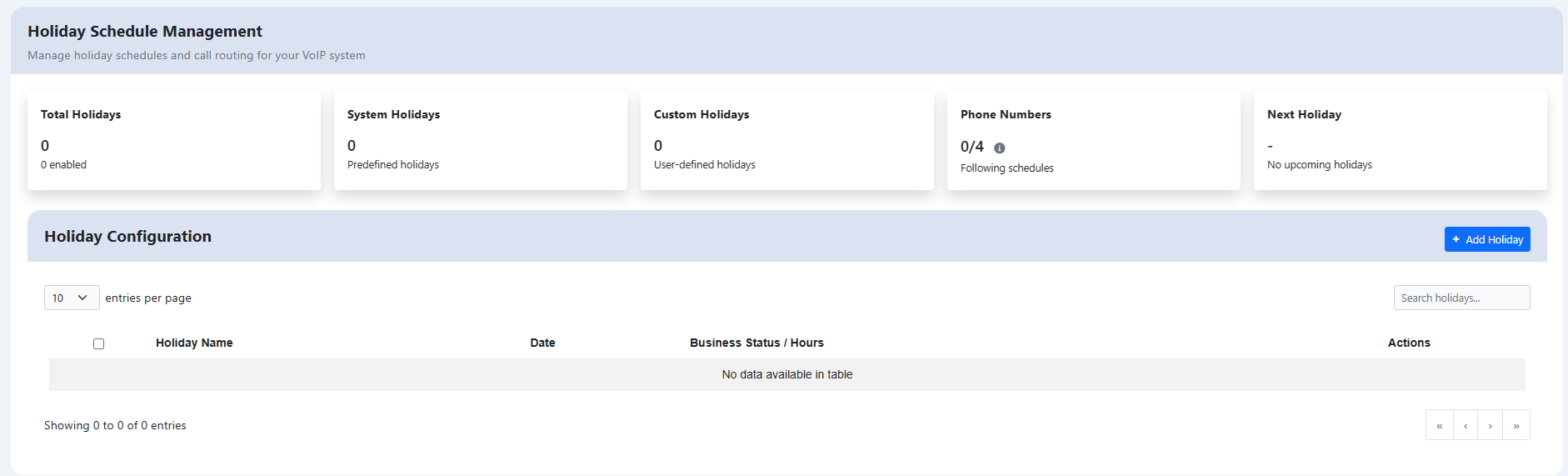
3. To create a Holiday configuration, press the  button.
4. You will be brought to the next screen below.

5. If you wish to select a predefined Holiday, select one from the drop-down menu.
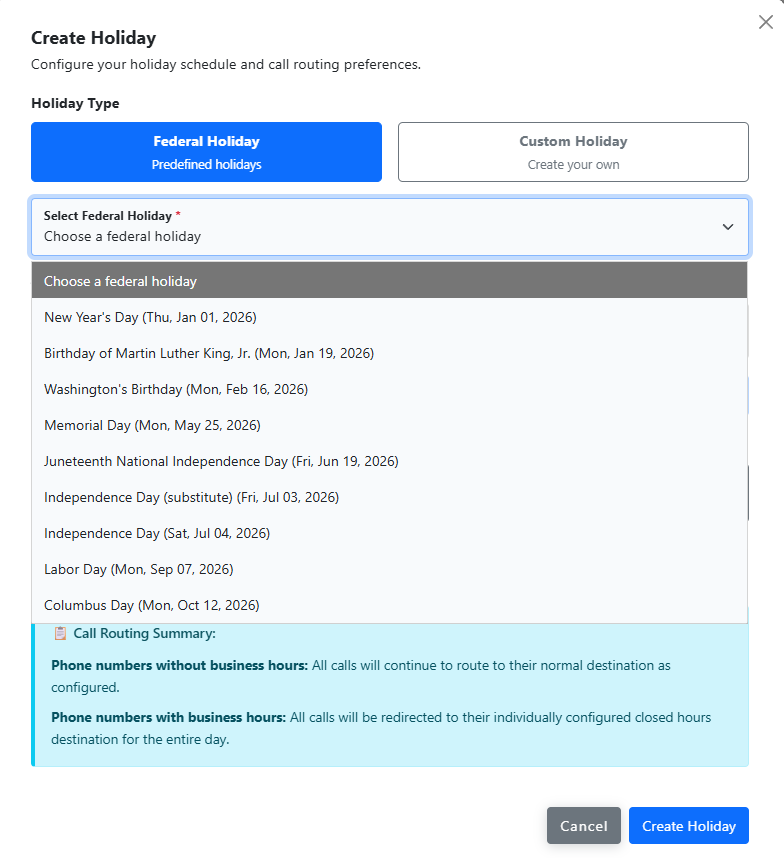
You can also choose to enter a custom Holiday instead by selecting the Custom Holiday tab.
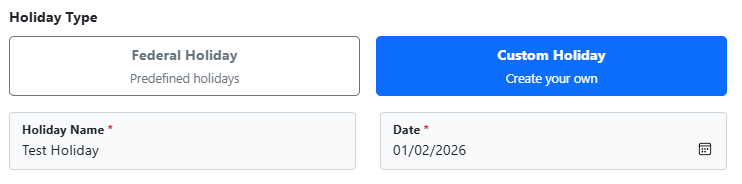
6. Once a Federal Holiday or Custom Holiday is selected, choose if this event repeats or not.
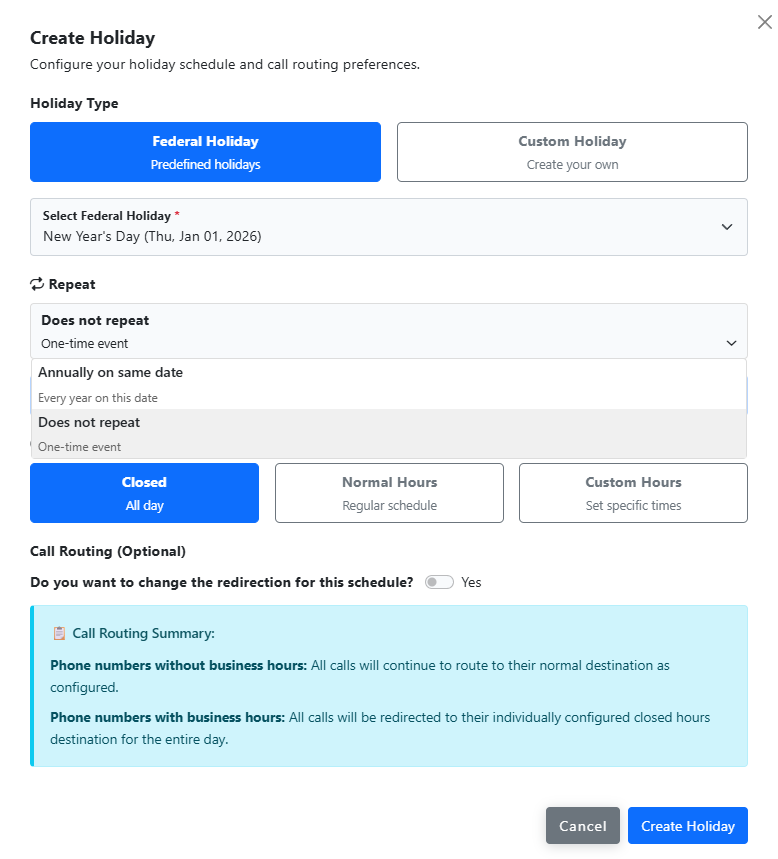
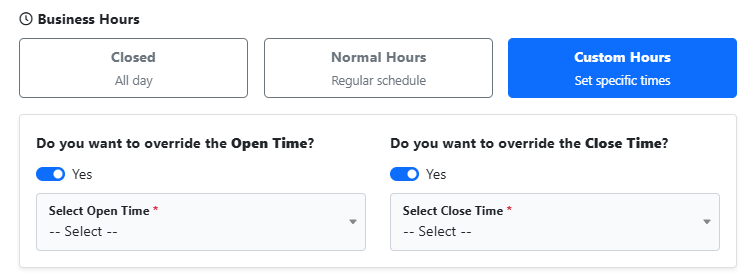
7. Next, select the business hours. You can select from Closed, Normal Hours or Custom Hours. If you select Closed, calls during the Holiday being created will route to the normal after hours destination. If Normal Hours is selected, calls will route as they would during normal business hours.

If Custom Hours is selected, enter the custom hours after pressing the Yes sidebar to enable the custom open and close times.
8. After the hours are entered, you have the option to change the redirection of calls for this specific holiday schedule. If you wish to adjust this setting, simply press the Yes slidebar option to enable it. Then, select the route you wish calls to route to during this holiday.

9. When you are done making changes, press the  button to finish creating the holiday. You will see the holiday created.

6. Next, within the UniVoxx portal select Call Routes then Numbers.
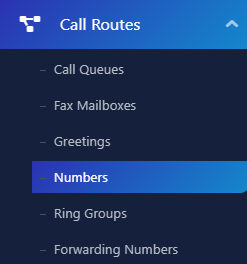
7. Find the number you wish to add the custom holiday schedule to. Select the edit icon to edit the number.

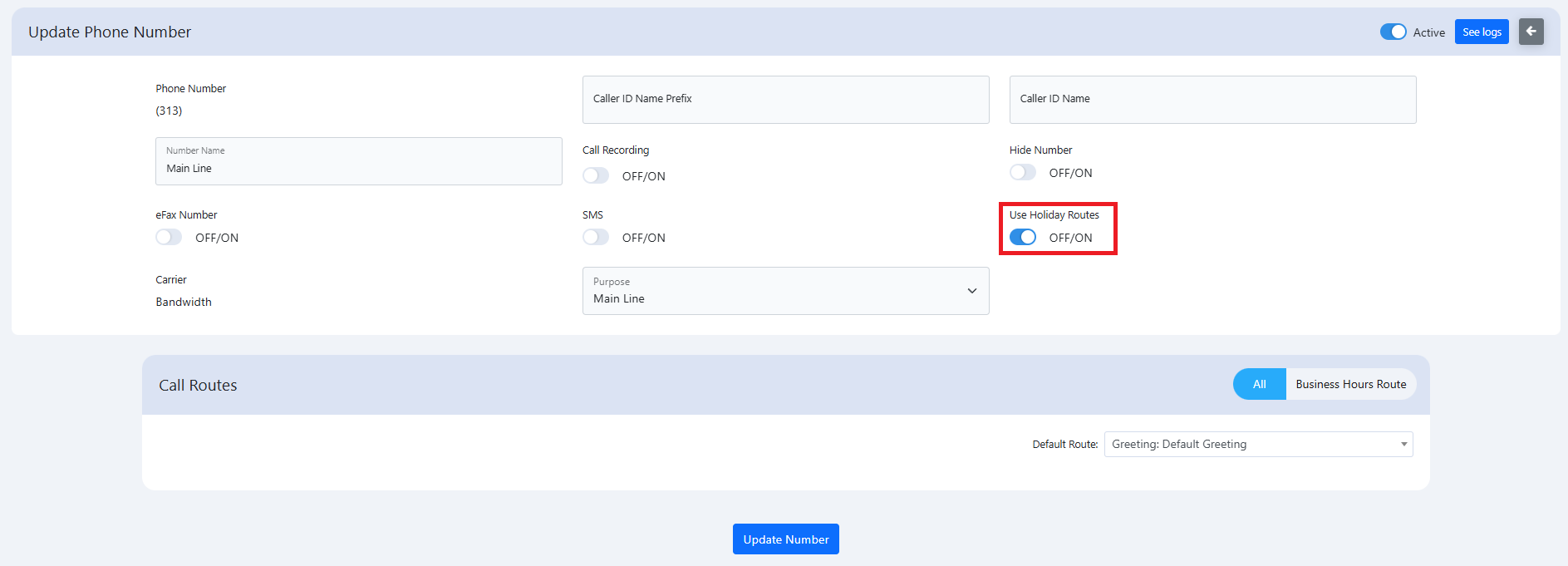
8. On the number edit page, ensure the Use Holiday Routes slide bar option is enabled. Then, select the Update Number button to submit the changes.